Blender
Installation
Download blender
Download blender from https://www.blender.org/download
Extract and make sure you can run
./blender --help
Download blender benchmark scenes
From https://opendata.blender.org/about there is a link to the benchmark scenes: https://opendata.blender.org/cdn/BlenderBenchmark2.0
Download and extract a scene, e.g.
bmw27
Render a single frame of the benchmark scene on CPU
Assuming the following file hierarchy
blender/
|
|--- blender (executable)
|
|--- scenes/
     |
     |--- bmw27/
          |
          |--- main.blend
To render a single frame of the bmw27 scene, run the following:
./blender --background scenes/bmw27/main.blend --render-frame 1 -- --cycles-device CPU
Render multiple frames on GPU(s)
To render 10 frames with more output: (See https://opendata.blender.org/about)
./blender --background \
    -noaudio \
    --factory-startup \
    --debug-cycles \
    --engine CYCLES \
    scenes/bmw27/main.blend \
    --render-frame 1..10 \
    -- \
    --cycles-device CUDA \
    --cycles-print-stats
This will render on all GPUs available using CUDA
To render on specific GPUs, set the CUDA_VISIBLE_DEVICES environment variable
Render 10 frames on GPU 0:
export CUDA_VISIBLE_DEVICES=0
./blender --background \
    -noaudio \
    --factory-startup \
    --debug-cycles \
    --engine CYCLES \
    scenes/bmw27/main.blend \
    --render-frame 1..10 \
    -- \
    --cycles-device CUDA \
    --cycles-print-stats
Render 10 frames on GPUs 1 and 2 using OPTIX
export CUDA_VISIBLE_DEVICES=1,2
./blender --background \
    -noaudio \
    --factory-startup \
    --debug-cycles \
    --engine CYCLES \
    scenes/bmw27/main.blend \
    --render-frame 1..10 \
    -- \
    --cycles-device OPTIX \
    --cycles-print-stats
Performance experiment
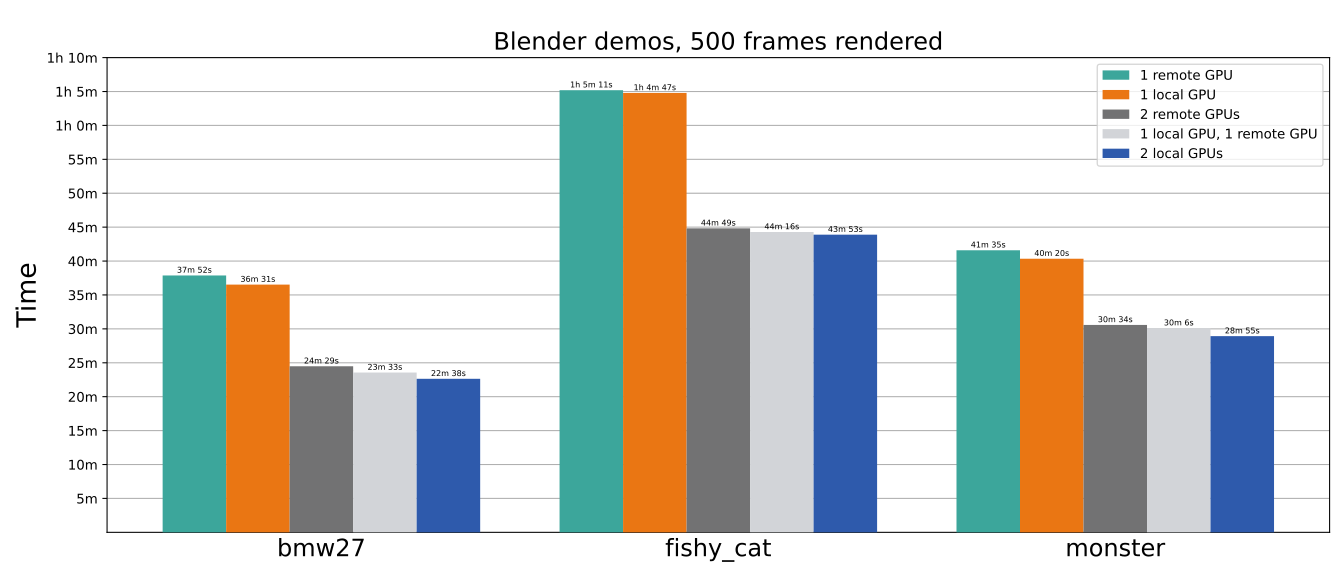
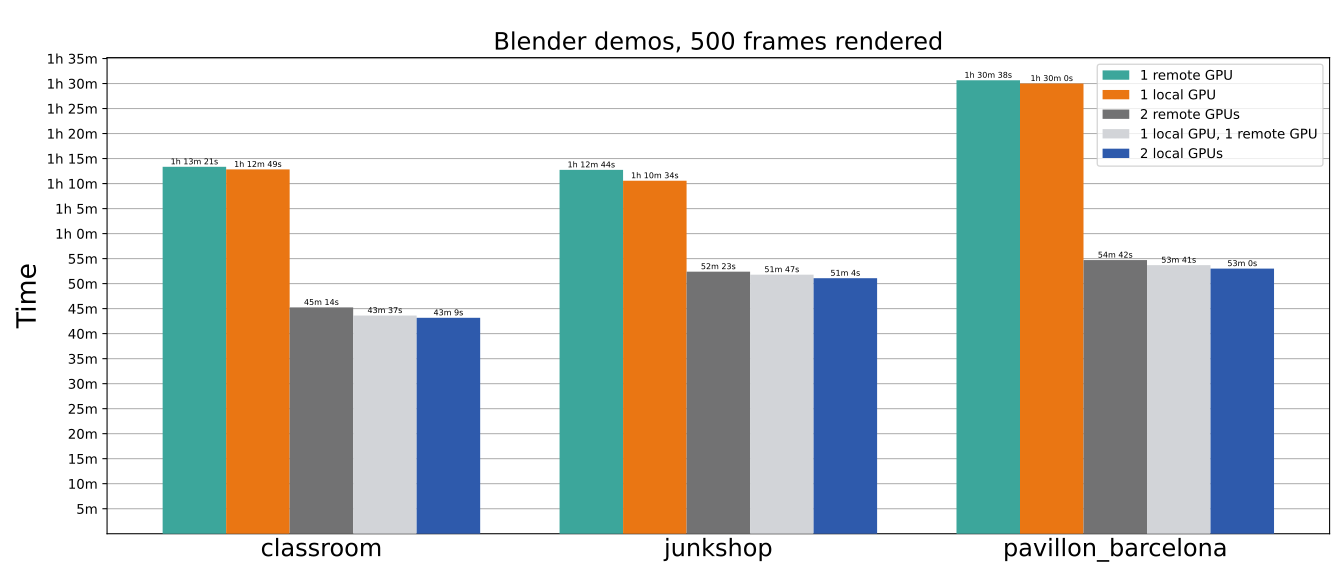
We run a 100 frame render workload using the Nvidia OptiX engine on a 2-node cluster with MXH530 PCIe 5.0 NTB Host Adapters and a direct x16 link, configured with 128GB BAR2 size. The nodes are AMD EPYC 9015 8-core processors, with 192G memory, PCIe Generation 5 and IOMMU enabled. Each node is running Ubuntu 24.04.3 LTS with kernel 6.8.0-79-generic, NVIDIA driver version 570.172.08 open, CUDA version 12.8. The cluster has access to 2 pooled Nvidia RTX PRO 4500 Blackwell GPUs. Below is a bar plot displaying results from different topologies. We see that remote pooled devices perform similar to local ones, and that adding more GPUs significantly improves the running time of the render job.
Applications clocks
On Nvidia GPUs, application clocks can be set for more stable results. This prevents the GPU from clocking itself above the given clocks. See https://docs.nvidia.com/deploy/nvidia-smi/index.html for more information.
sudo nvidia-smi --persistence-mode 1
sudo nvidia-smi --applications-clocks <MEM_CLOCK>,<GRAPHICS_CLOCK>
To find the default application clocks for a GPU:
nvidia-smi --query --display CLOCK